

Browsertolt.js + Chargebee.js
Chargebeebilling
Toltattribution
1?ref=sam
2cf_tolt_referral: clk_3nVb…
3payment_succeeded
4comm_2nV8… 1470
Set up
1
Connect Chargebee
In the dashboard, go to Settings → Integrations → Chargebee. Enter your Chargebee site (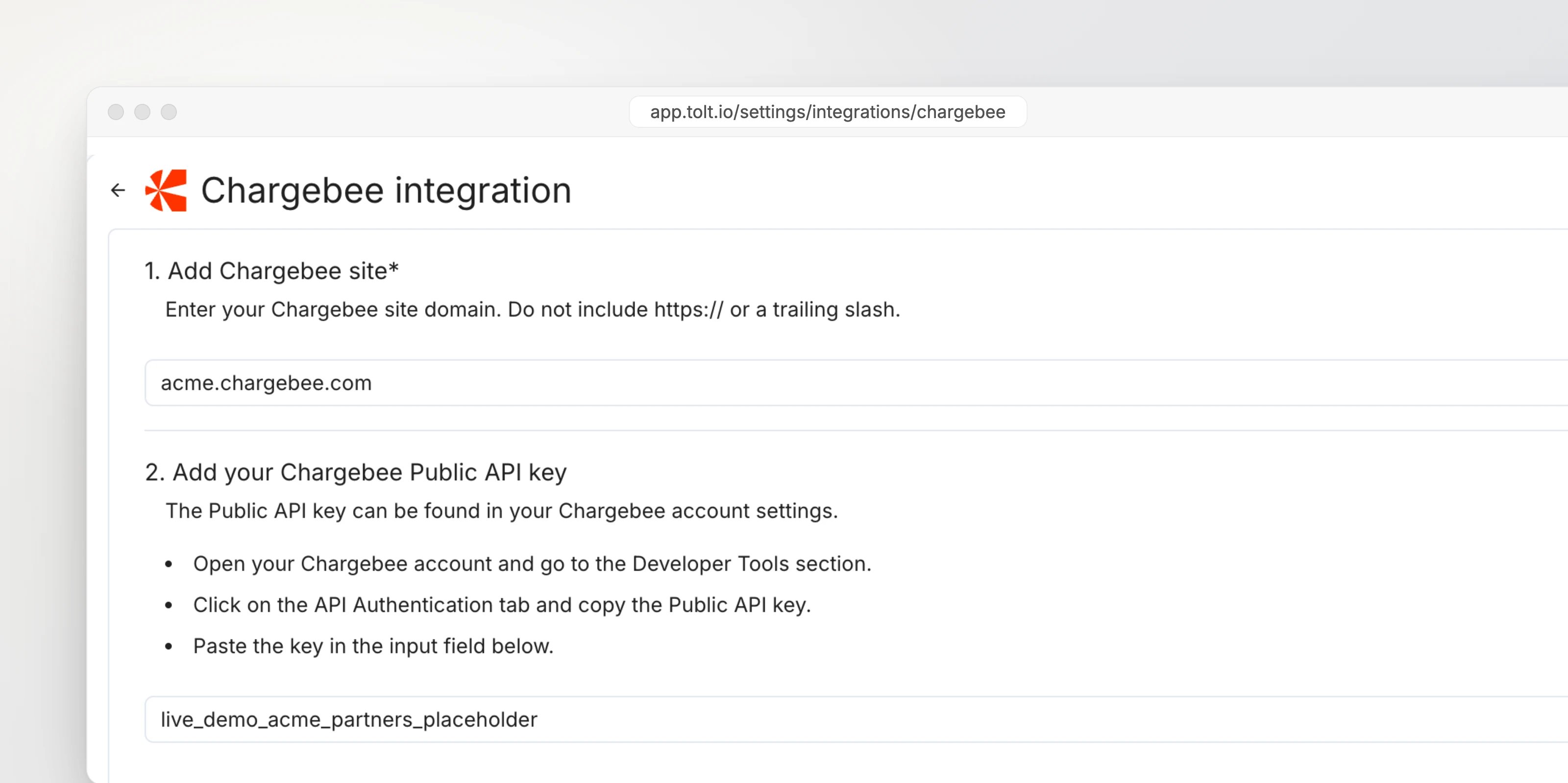
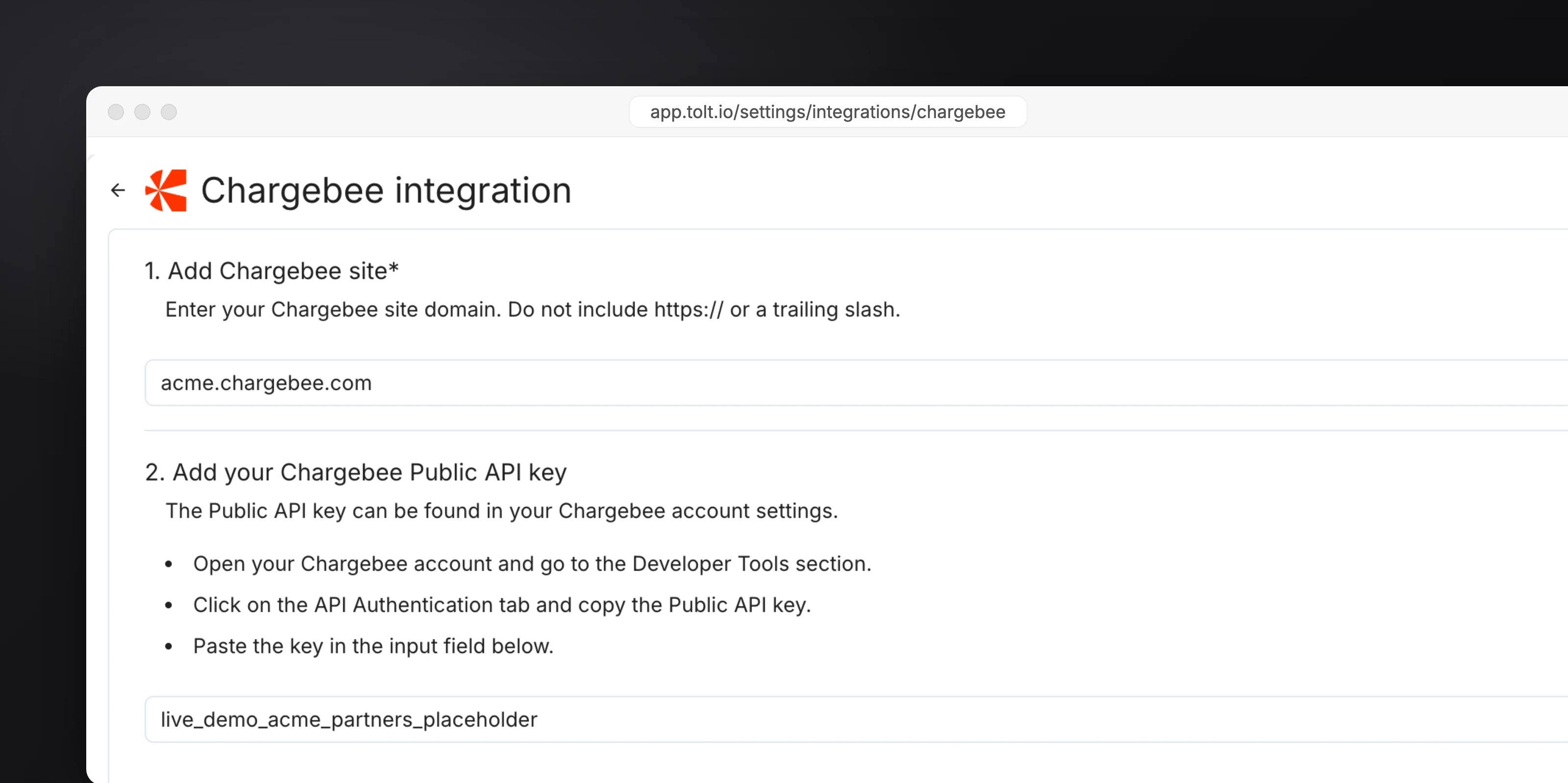
acme.chargebee.com) and a Chargebee API key, then save.2
Add tolt.js
Add the script to every page of your site and app. See Install tolt.js.
HTML
3
Pass the referral to Chargebee
Store the referral on the Chargebee customer. Pick the path that matches your checkout.
- Drop-in checkout
- API
In Chargebee, go to Settings → Configure Chargebee → Custom Fields and add a customer field with the API name
cf_tolt_referral. Then set it on the cart when the buyer starts checkout:Chargebee.js
4
Add the webhook
Copy the webhook URL from the Chargebee integration page in the Tolt dashboard. In Chargebee, go to Settings → Configure Chargebee → Webhooks → Add Webhook, paste it and select these events:Subscription Created, Subscription Started, Subscription Cancelled, Subscription Deleted, Payment Succeeded, Payment Refunded, Coupon DeletedAlso turn on Exclude card information from webhook call.
5
Test it
Open a partner link like
acme.com/?ref=sam, complete a checkout, then find the customer under Customers and the commission under Commissions in the dashboard.Details
Excluding tax
Excluding tax
Turn on Exclude Chargebee tax in the tracking amount on the Chargebee integration page. Commissions then use the amount before tax. It’s off by default.
Refunds and cancellations
Refunds and cancellations
A refunded payment zeroes unpaid commissions or creates a negative one if already paid. A cancelled or deleted subscription marks the customer canceled. See Refunds.